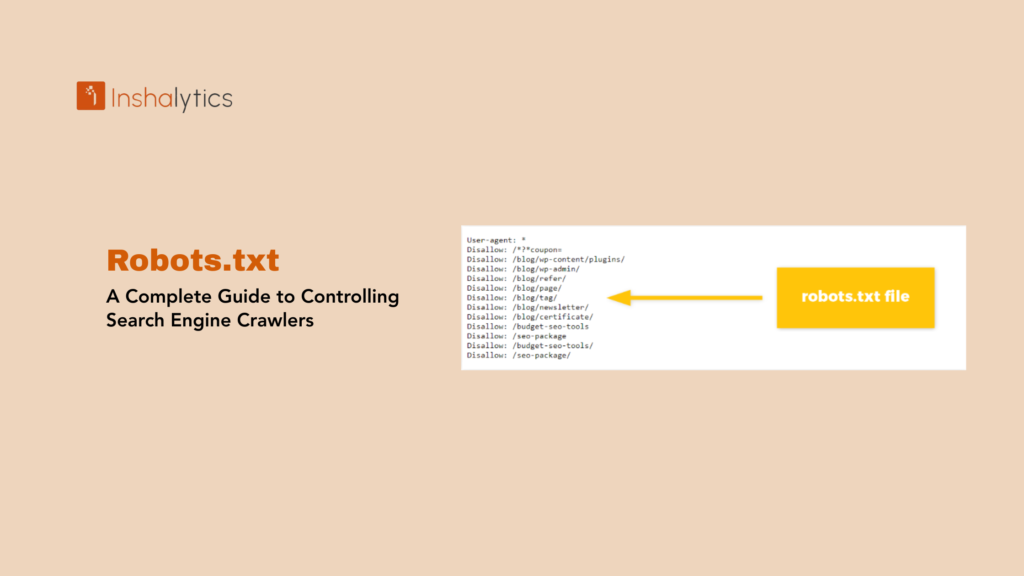
Robots.txt is a plain text file placed in the root directory of your website that instructs search engine crawlers (also called bots or spiders) which pages or sections of your site they can or cannot access and index. This file serves as the first point of contact between your website and search engine bots, providing directives that help manage crawl budget, protect sensitive content, and control how search engines interact with your site.
Located at yourdomain.com/robots.txt, this file follows the Robots Exclusion Protocol a standard established in 1994 that all major search engines respect. While robots.txt doesn’t legally prevent access (it’s a request, not a firewall), reputable search engines honor these directives, making it an essential tool for technical SEO and website management.
Navigate This Post
How Robots.txt Works
When a search engine crawler wants to access your website, it follows a specific process:
The Crawling Process
- Bot arrives at your site – A search engine crawler (like Googlebot) prepares to crawl your website
- Checks for robots.txt – Before accessing any pages, the bot looks for yourdomain.com/robots.txt
- Reads and parses directives – The bot reads the file and identifies rules applicable to its user-agent
- Follows instructions – The bot honors Allow and Disallow directives, only crawling permitted areas
- Proceeds with crawling – The bot accesses allowed pages and respects blocked sections
If no robots.txt file exists, search engines assume all content is crawlable and proceed without restrictions.
Basic Robots.txt Syntax
Robots.txt files use simple, straightforward syntax with specific directives:
Essential Directives
User-agent: Specifies which crawler the following rules apply to
User-agent: *
The asterisk (*) means “all crawlers”
User-agent: Googlebot
Targets only Google’s crawler
Disallow: Specifies paths that should NOT be crawled
Disallow: /admin/
Blocks access to the admin directory
Disallow: /
Blocks access to the entire site
Allow: Explicitly permits crawling of specific paths (useful for allowing subdirectories within blocked sections)
Allow: /admin/public/
Allows access to public section within blocked admin directory
Sitemap: Indicates the location of your XML sitemap
Sitemap: https://yourdomain.com/sitemap.xml
Example Robots.txt File
# Allow all crawlers to access all content
User-agent: *
Disallow:
# Sitemap location
Sitemap: https://yourdomain.com/sitemap.xml
# Block all crawlers from entire site
User-agent: *
Disallow: /
# Common configuration for most websites
User-agent: *
Disallow: /admin/
Disallow: /private/
Disallow: /search?
Disallow: /cart/
Allow: /public/
Sitemap: https://yourdomain.com/sitemap.xml
Common Use Cases for Robots.txt
1. Protecting Private or Sensitive Content
Block crawlers from accessing administrative areas, user accounts, or confidential information:
User-agent: *
Disallow: /admin/
Disallow: /user-profiles/
Disallow: /internal/
Important: Robots.txt doesn’t provide security. Use proper authentication and server-level restrictions for truly sensitive content.
2. Managing Crawl Budget
Large websites with thousands of pages should prevent crawlers from wasting time on low-value pages:
User-agent: *
Disallow: /search?
Disallow: /filter?
Disallow: /tags/
Disallow: /*.pdf$
This preserves crawl budget for important content pages.
3. Preventing Duplicate Content Issues
Block search engines from indexing parameter-based URLs or duplicate content:
User-agent: *
Disallow: /*?*
Disallow: /*?page=
Disallow: /*?sort=
4. Blocking Specific Bots
Target problematic or aggressive crawlers while allowing legitimate search engines:
User-agent: BadBot
Disallow: /
User-agent: *
Disallow:
5. Staging and Development Sites
Prevent search engines from indexing development or staging environments:
User-agent: *
Disallow: /
6. Protecting Resource Files
Block crawling of CSS, JavaScript, or image directories to save bandwidth:
User-agent: *
Disallow: /wp-content/plugins/
Disallow: /wp-admin/
Disallow: /css/
Disallow: /js/
Note: Google recommends allowing access to CSS and JavaScript files so crawlers can render pages properly.
Advanced Robots.txt Directives
Crawl-delay
Some search engines (notably Bing and Yandex) support crawl-delay to limit request frequency:
User-agent: Bingbot
Crawl-delay: 10
This requests a 10-second delay between requests. Google doesn’t support this directive.
Wildcard Matching
Use asterisks (*) to match any sequence of characters:
User-agent: *
Disallow: /*.pdf$
Blocks all PDF files
Disallow: /*?
Blocks all URLs with parameters
Dollar Sign ($)
Indicates the end of a URL:
Disallow: /*.php$
Blocks URLs ending in .php but allows .php?parameter
Common Robots.txt Mistakes
1. Blocking CSS and JavaScript
Mistake:
Disallow: /css/
Disallow: /js/
Impact: Prevents search engines from rendering pages properly, potentially harming rankings and mobile-friendliness assessments.
Solution: Allow access to CSS and JavaScript files needed for rendering.
2. Using Robots.txt for SEO Penalties
Mistake: Blocking low-quality pages to prevent indexing
Impact: Blocked pages can still appear in search results (showing URL only without description), and blocking doesn’t pass authority to other pages.
Solution: Use noindex meta tags or canonical tags instead.
3. Blocking Pages You Want Indexed
Mistake:
Disallow: /products/
When you actually want products indexed.
Impact: Critical content doesn’t appear in search results, devastating organic traffic.
Solution: Carefully review all Disallow directives before deploying.
4. Syntax Errors
Mistake:
User-agent: *
Dissallow: /admin/ # Typo in “Disallow”
Impact: Directive is ignored, allowing unwanted crawling.
Solution: Test robots.txt files using validation tools.
5. Blocking Entire Site Unintentionally
Mistake: Copying development robots.txt to production:
User-agent: *
Disallow: /
Impact: Complete de-indexing and traffic loss.
Solution: Always verify robots.txt when launching or migrating sites.
6. Case Sensitivity Issues
Robots.txt paths are case-sensitive:
Disallow: /Admin/
This blocks /Admin/ but NOT /admin/ or /ADMIN/
Solution: Use lowercase paths or create multiple directives for variations.
7. Forgetting Trailing Slashes
Disallow: /admin
Blocks /admin, /admin.html, /admin-panel/
Disallow: /admin/
Blocks only /admin/ and subdirectories, but NOT /admin or /admin.html
Testing Your Robots.txt File
Google Search Console
Robots.txt Tester Tool:
- Open Google Search Console
- Navigate to robots.txt Tester (legacy tools)
- Enter URLs to test against your robots.txt
- See whether specific URLs are allowed or blocked
- Test changes before deploying
Manual Testing
Access your robots.txt file directly:
Verify:
- File is accessible (returns 200 status code)
- Syntax is correct
- Directives are as intended
- Sitemap location is accurate
Third-Party Validators
Technical SEO Tools:
- Screaming Frog SEO Spider – Checks robots.txt during site crawls
- SEMrush Site Audit – Identifies robots.txt issues
- Ahrefs Site Audit – Detects blocking problems
Robots.txt vs. Other Blocking Methods
Robots.txt vs. Noindex Meta Tag
Robots.txt (Disallow):
- Prevents crawling
- Pages can still appear in search results (URL only)
- Doesn’t pass authority
- Applied at server level
Noindex Meta Tag:
- Allows crawling but prevents indexing
- Completely removes pages from search results
- Can pass authority through links
- Applied at page level
Best Practice: Use noindex for pages you don’t want in search results but want crawlers to access for link equity.
Robots.txt vs. Password Protection
Robots.txt:
- Requests (doesn’t enforce) that bots don’t crawl
- No actual security
- Publicly visible
Password Protection:
- Enforces access restrictions
- Provides real security
- Requires authentication
Best Practice: Use authentication for truly sensitive content, not robots.txt.
Robots.txt vs. Server-Level Blocking
Robots.txt:
- Guideline for crawlers
- Voluntarily respected
- Doesn’t affect direct access
Server-Level Blocking (IP blocking, .htaccess):
- Enforces restrictions
- Prevents all access
- Can target specific IPs or user agents
Creating and Deploying Robots.txt
Step 1: Create the File
Create a plain text file named exactly robots.txt (all lowercase). Use a simple text editor, not a word processor.
Step 2: Add Directives
Start with basic directives:
User-agent: *
Disallow:
Sitemap: https://yourdomain.com/sitemap.xml
Add specific blocks as needed for your site.
Step 3: Validate
Test using Google Search Console robots.txt tester or online validators.
Step 4: Upload to Root Directory
Place the file in your website’s root directory:
NOT in subdirectories like /seo/robots.txt
Step 5: Verify Accessibility
Access the URL directly to confirm the file is publicly accessible and displays correctly.
Step 6: Monitor
Regularly check Google Search Console for crawl errors or issues related to robots.txt directives.
Best Practices for Robots.txt
1. Keep It Simple – Only block what’s necessary. Overly complex files increase error risk.
2. Use Comments – Add comments (lines starting with #) to explain directives for future reference.
3. Include Sitemap – Always reference your XML sitemap location.
4. Test Before Deploying – Validate syntax and test specific URLs before making changes live.
5. Monitor Regularly – Check Google Search Console for unintended blocking.
6. Document Changes – Maintain records of robots.txt modifications for troubleshooting.
7. Use Separate Development Rules – Maintain different robots.txt files for development and production environments.
8. Allow Important Resources – Don’t block CSS, JavaScript, or images needed for proper rendering.
Conclusion
Robots.txt is a fundamental technical SEO tool that gives you control over how search engines interact with your website. When used correctly, it helps manage crawl budget, protect sensitive areas, and prevent indexing of duplicate or low-value content. However, its power comes with responsibility improper configuration can accidentally block important pages, causing significant traffic loss.
The key to effective robots.txt management is understanding that it’s a crawling directive, not a security measure or indexing controller. For preventing indexing, use noindex meta tags. For security, implement proper authentication. Use robots.txt specifically for guiding crawler behavior on publicly accessible content.
Start with minimal restrictions, test thoroughly before deploying changes, and monitor regularly through Google Search Console. When in doubt, allowing access is safer than accidentally blocking important content. A well-configured robots.txt file works silently in the background, ensuring search engines efficiently crawl your most valuable content while respecting boundaries you’ve set.
Key Takeaway: Robots.txt is a plain text file in your website’s root directory that instructs search engine crawlers which pages or sections they can or cannot access. Using simple Disallow and Allow directives, it manages crawl budget, protects low-value content from crawling, and controls bot behavior but it’s not a security tool or indexing controller. Proper robots.txt configuration requires careful testing to avoid accidentally blocking important pages from search engines.